Setting the output value (character conversion, determination from order details)
-
Set the output value in “Edit (item name)”, which opens when you click a row of the field definitions in the template’s edit screen. In “Default value”, choose “Fixed value” (free text) or “Detail (order info, code)“. In the detail you can choose “Order info”, “Free text” or “Code (JavaScript)“.
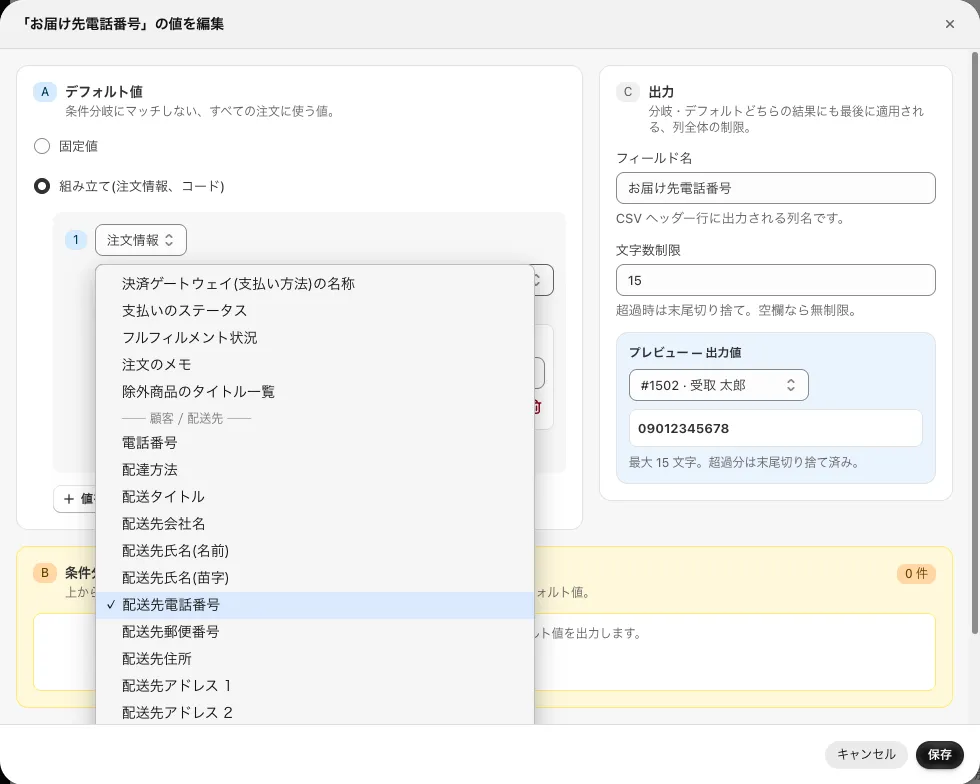 Choose the item to output from “Order info”
If you add a value with “Add value (combine)”, you can combine several values into one cell. Set what goes between the values with “joined by”.
Choose the item to output from “Order info”
If you add a value with “Add value (combine)”, you can combine several values into one cell. Set what goes between the values with “joined by”.
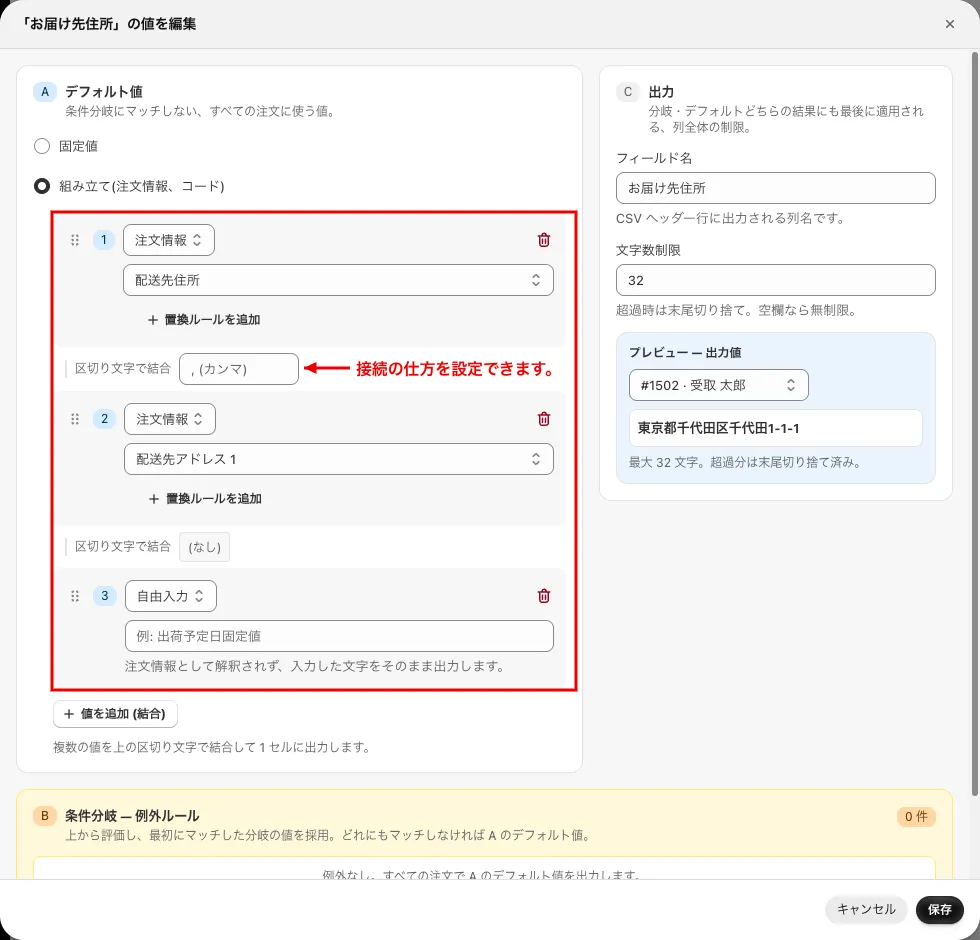 Output values can be set in combination (joined by a separator)
 -
Output values can be converted. With “Add replacement rule” on the assembled value, specify from (before conversion) → to (after conversion).
For the string before conversion, you can also check “Use regex” and use a regular expression.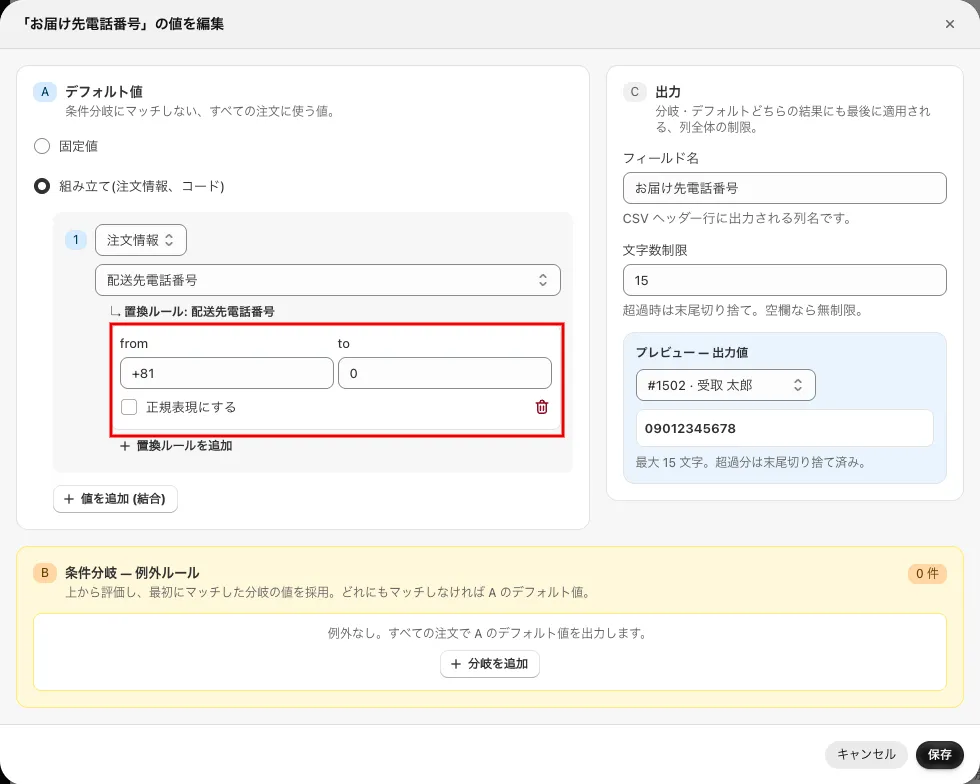 Convert +81 (country code) of the phone number to 0
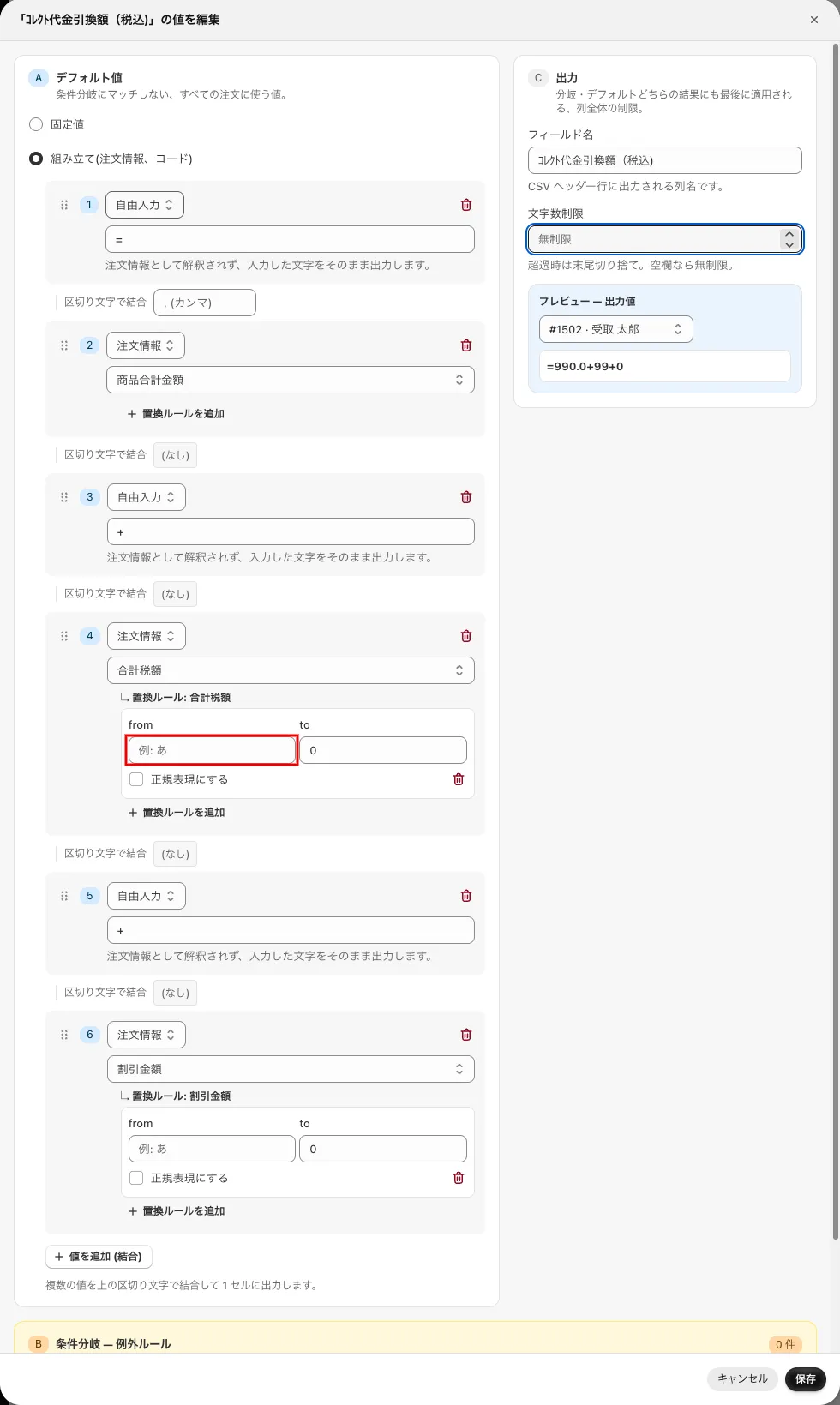 When you want to output the total amount with a formula (assembled with ”=” and ”+” in “Free text”), order details without input are output as 0
 -
You can change the output value from the order details. With “Add branch” in “Branches — exceptions”, set the condition “IF the order’s
<contains, etc.> ” and the value to output at that time (“Fixed value” or “Detail (order info, code)”), then press “Save branch”. Branches are evaluated from the top, and the value of the first branch that matches is output. If none matches, the “Default value” is output. 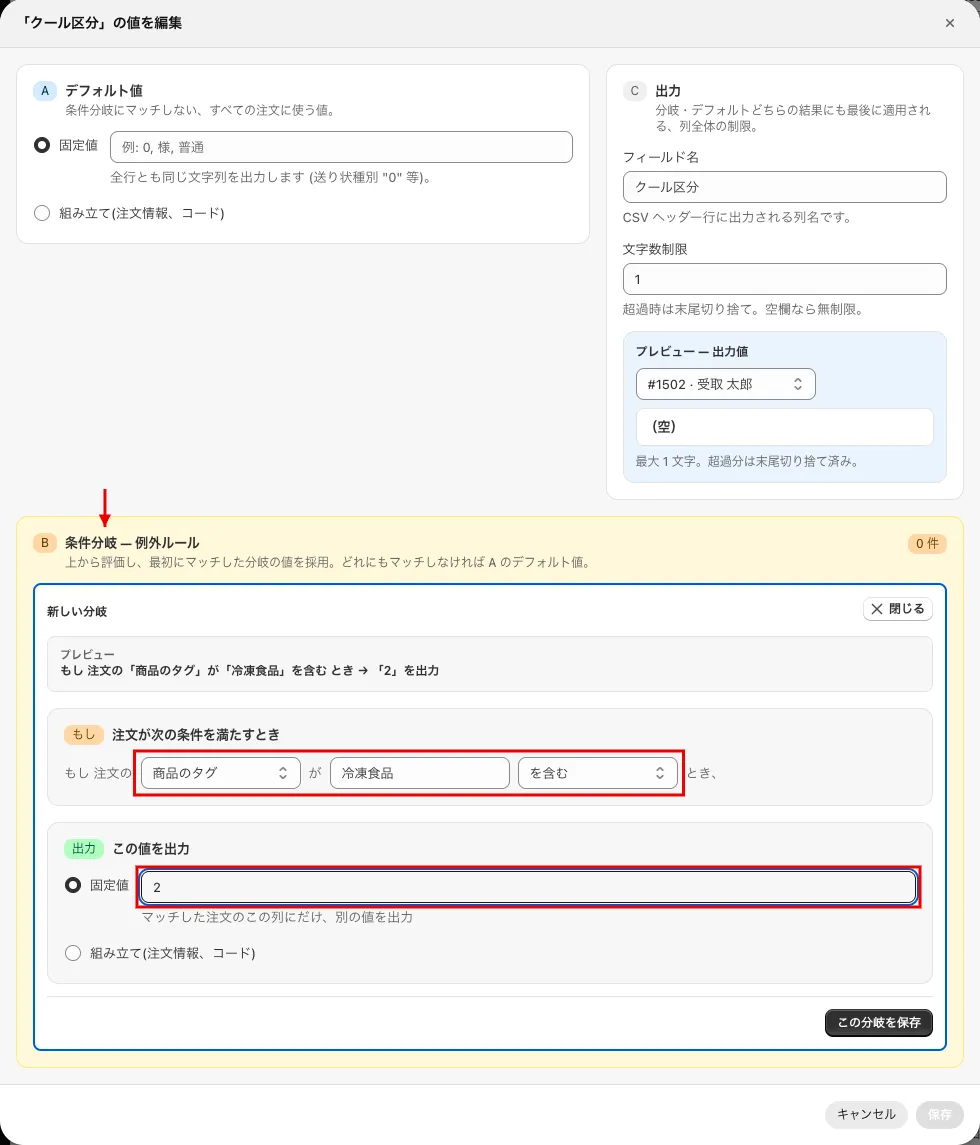 Changing the cool category for an order containing frozen food (output “2” when the product tag contains “冷凍食品” (frozen food))
 -
If you save a condition with an empty value, it matches orders in which that item has no value.