Output Settings for Order Metafields
-
Go to Settings → “Fetch settings” → “Fetch metafields”, check “Fetch order metafields”, and add the metafield as “namespace.key”. After changing it, fetch the orders again.
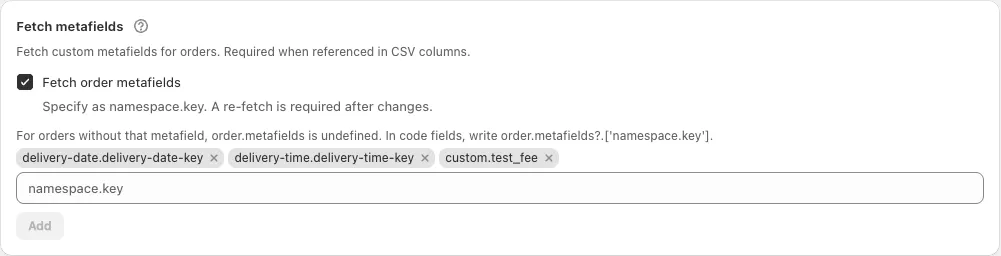 Fetch settings screen
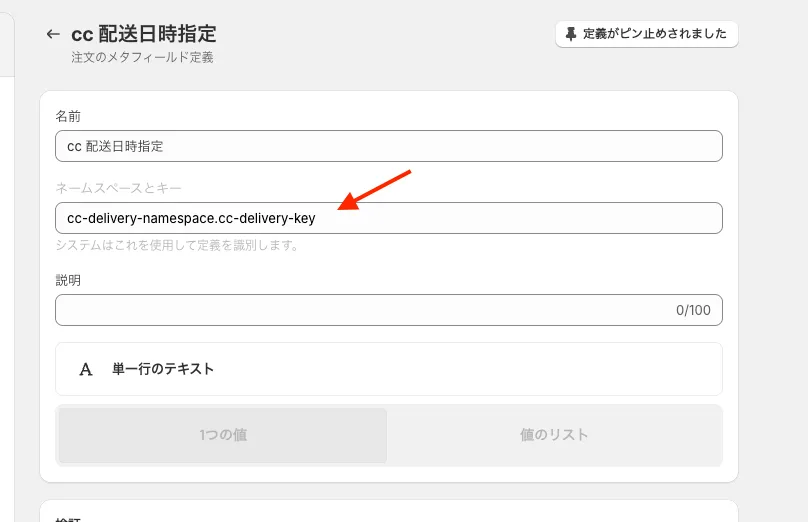 Metafield definition
 -
In “Edit value” → “Detail (order info, code)”, choose “Order info” and pick “Metafield[namespace.key]” from the options. The metafields registered in “Fetch settings” are listed. A metafield that is not registered is not fetched, so it cannot be selected.
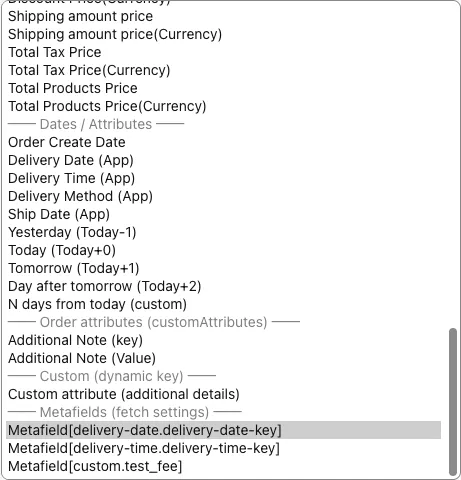 The metafields registered in “Fetch settings” appear in the “Order info” options
You can also choose “Metafield[namespace.key]” as the target of a branch in “Branches — exceptions”. Use it to change the output depending on the metafield value.
Example Settings
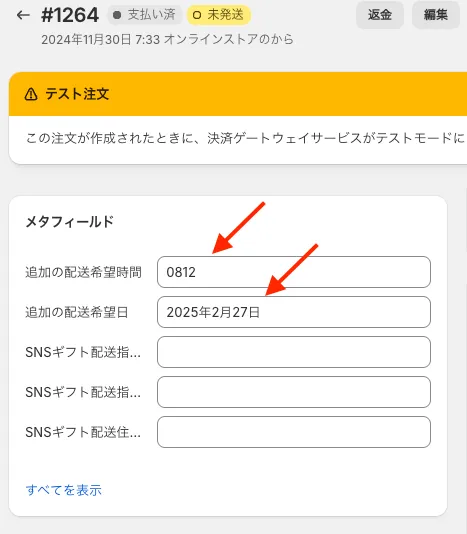
When you manually create an order or have set the display delivery date and time, the delivery date property does not exist in the “Additional Details” of the order. In such cases, if the customer requests a delivery date after the order is created, it is recommended to use metafields.
-
Define metafields to record the desired delivery date and time.
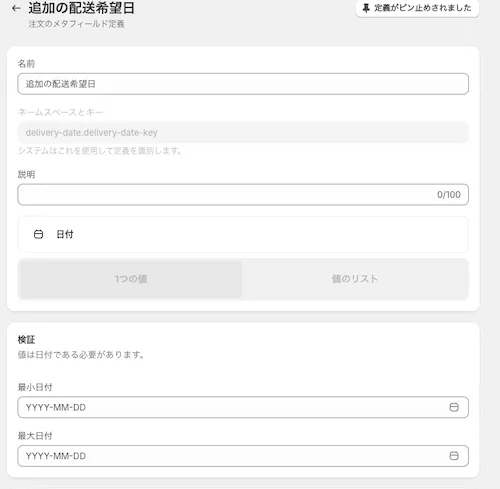 Create a metafield for the desired delivery date
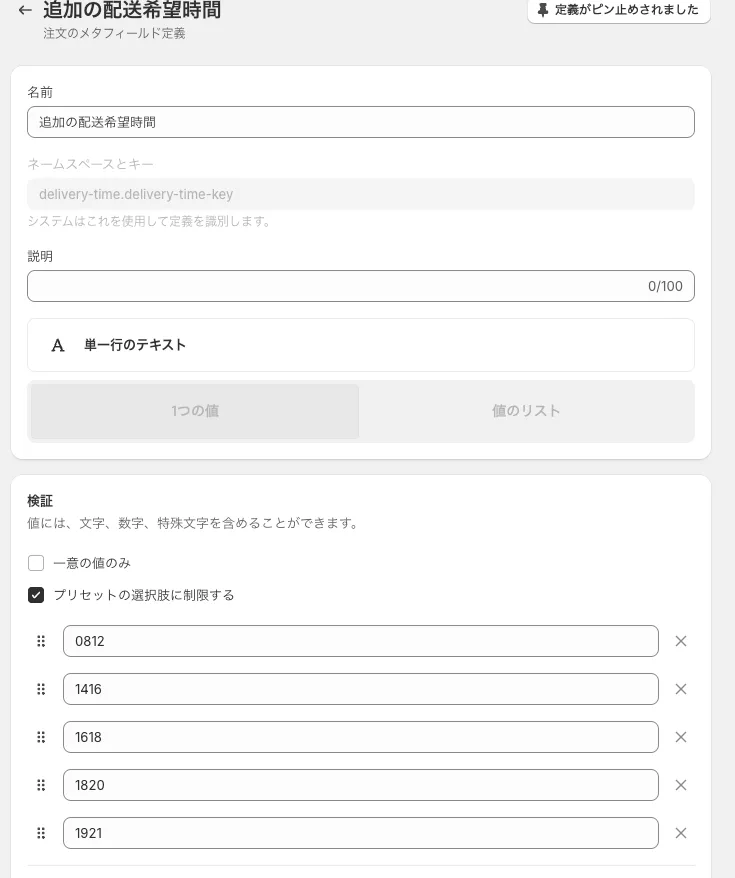 Create a metafield for the desired delivery time
 -
Set it to refer to the metafield when the desired delivery date is blank. (Open the field row to edit its value, add a branch in “Branches — exceptions” with the target “Delivery Date (App)” and an empty value, and set the output to “Metafield[namespace.key]”.) (If there is no value in the metafield, the output will also be blank.)
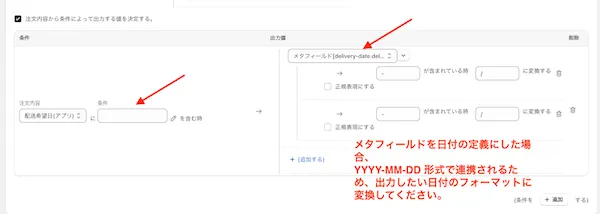 Output the metafield value when there is no desired delivery date
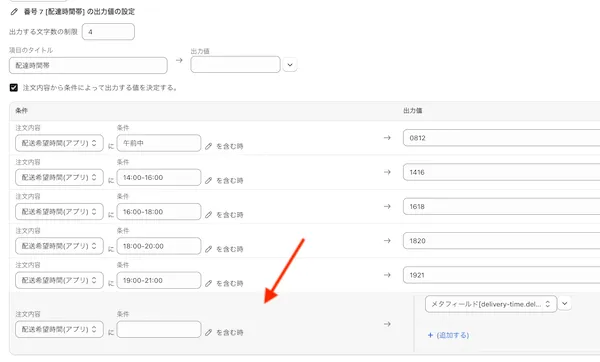 Output the metafield value when there is no desired delivery time
 -
Edit the metafield from the order.